
Skip to content
English
  • There are no suggestions because the search field is empty.

Preparing a Custom Question List in the StoryCorps App

In 2022, we launched a new version of our App, this article relates to the latest version. To figure out which version you’re on or get help for Version 1, check out this article!

You can create a custom question list in the StoryCorps App to use throughout your interview. To create your custom question list:

  • Press the Record button (the red microphone icon on the bottom center of the app screen) and select Prepare My Interview.
  • After giving your interview a title and reviewing the Plan Your Interview checklist, press the Next button on the bottom of the screen.
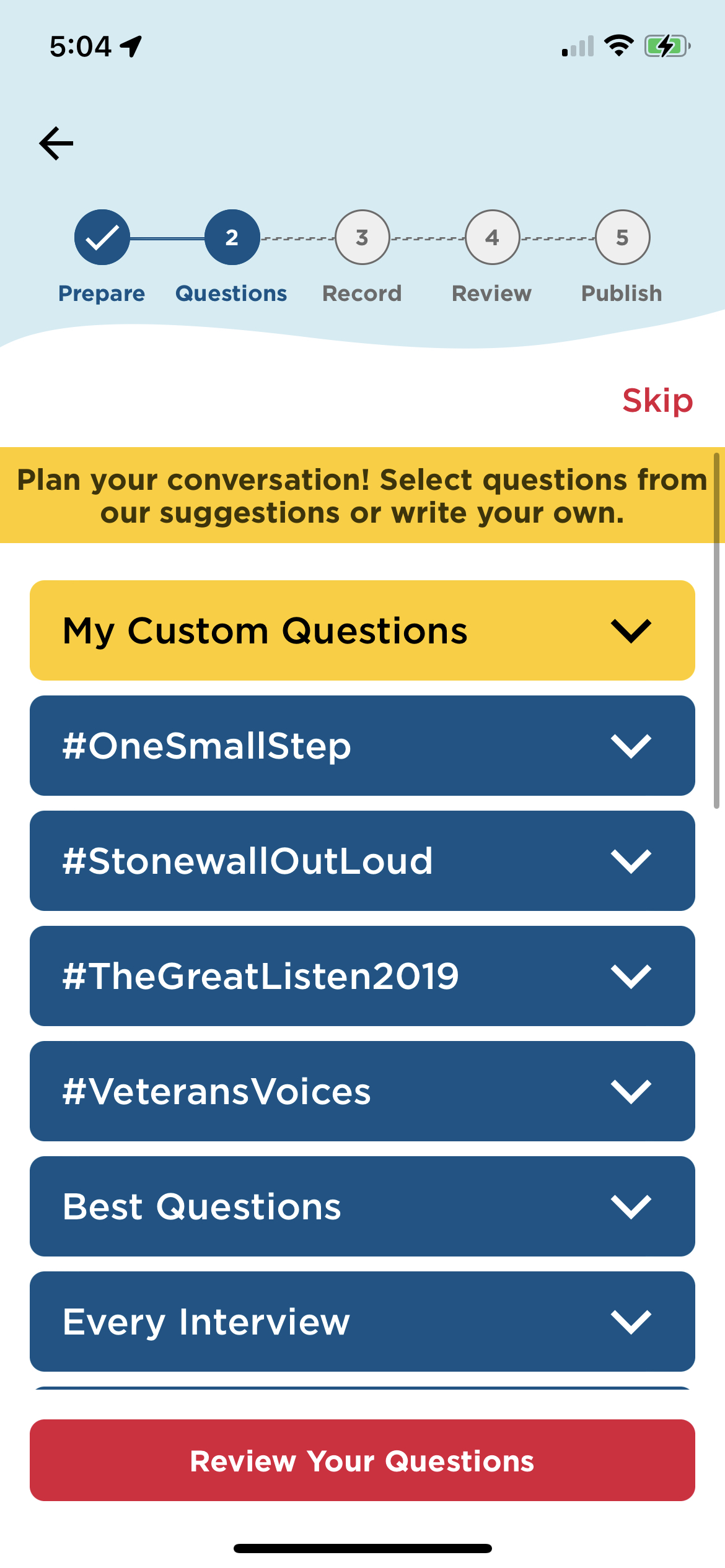
  • You’ll now be able to access all of our prewritten Great Question lists. In addition to some warm-up questions, our Great Question lists are sorted by:
    • Topic (such as Love & Relationships and Family Heritage)
    • Initiative (such as #OneSmallStep and #StoneWallOutLoud)
  • You can browse our prewritten questions by selecting the blue drop-down tab for the question list you want to explore.
  • After selecting a list, add any questions that you’d like to include on your question list.
    • Added questions will be highlighted in yellow and have a red checkmark to the right of the question.
  • You can also create your own custom questions to include on your list. To add custom questions:
    • Select the yellow My Custom Questions tab.
    • Press the Add a Custom Question button, type in your question, and press Add.
    • Your custom question will now appear in the My Custom Questions tab. You can add these questions the same way you add questions from the prewritten lists.
IMG_E5926ABEB088-1.jpeg

  • After selecting all the questions you want to include on your question list, press the red Review Your Questions button on the bottom of the screen.
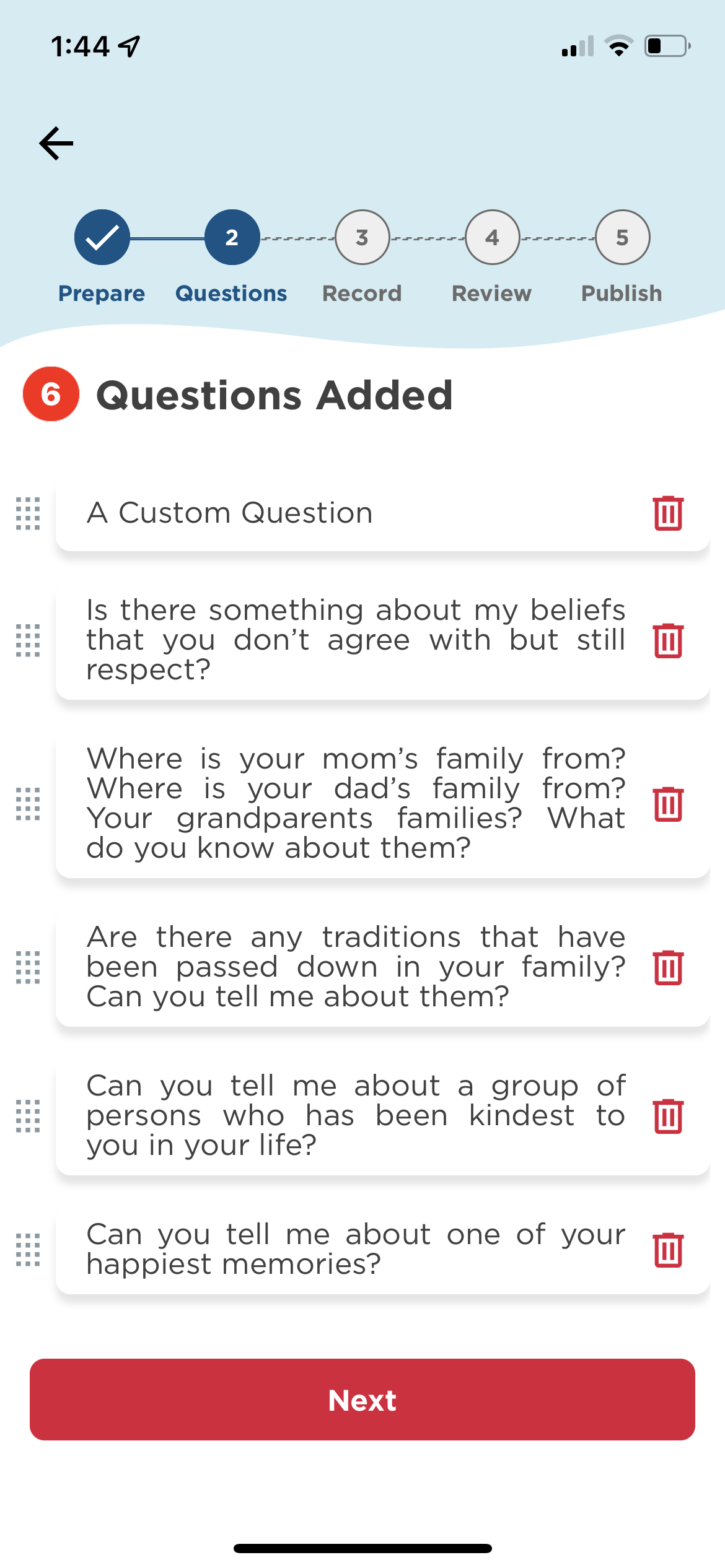
  • You’ll now be able to review all the questions you have added to your question list.
    • You can change the order your questions appear by dragging and dropping them into your preferred order.
    • You can also delete any questions you’ve added by selecting the red trash can icon to the right of the question.
    • You can always press the back arrow in the upper left corner of your screen to add more questions to your question list.
IMG_81110807A538-1.jpeg

  • After you’ve reviewed your question list, press the Next button at the bottom of the screen. From here, you can either begin recording your interview by selecting Yes, let’s record now! or record at a later time by selecting Not yet, save as a draft.

Need more help? Try the step-by-step guide below:

Tutorial Link: https://ior.ad/8kce

20 STEPS

1. To create a custom question list using the StoryCorps App, start by selecting the red Record button.

Step 1 image

2. Next, select Prepare My Interview.

Step 2 image

3. Enter a Title for your interview and review the Plan Your Interview checklist.

Step 3 image

4. After giving your interview a title and reviewing the checklist, select Next.

Step 4 image

5. From here, you can access all of our prewritten Great Question lists.

Step 5 image

6. Great Question lists are sorted by topic. You can browse these lists by selecting the blue drop-down tab for the question list you want to explore.

Step 6 image

7. After choosing a list, select any questions that you’d like to add to your custom question list.

Step 7 image

8. Added questions will be highlighted in yellow and have a red checkmark to the right of the question.

Step 8 image

9. You can also create your own custom questions to include on your question list. To add custom questions, select the yellow My Custom Questions tab.

Step 9 image

10. Next, press the Add a Custom Question button.

Step 10 image

11. Enter your custom question. When you are finished, press the Add button.

Step 11 image

12. Your custom question will now appear in the My Custom Questions tab.

Step 12 image

13. You can add custom questions to your list the same way you add questions from the prewritten lists.

Step 13 image

14. Once you've chosen all of the questions you want to include on your question list, select Review Your Questions.

Step 14 image

15. Review all the questions you have added to your question list.

Step 15 image

16. You can change the order your questions appear by dragging and dropping them into your preferred order.

Step 16 image

17. You can also delete any questions you’ve added by selecting the trash can icon to the right of the question.

Step 17 image

18. If you want to add more questions to your question list, you can press the back arrow in the upper left corner of your screen to go back and add additional questions.

Step 18 image

19. After you’ve reviewed your question list, press the Next button at the bottom of the screen.

Step 19 image

20. That's it! You've successfully created your custom question list. You can either begin recording your interview by selecting Yes, let’s record now! or record at a later time by selecting Not yet, save as a draft.

Step 20 image

Here's an interactive tutorial

** Best experienced in Full Screen (click the icon in the top right corner before you begin) **

https://www.iorad.com/player/1984262/StoryCorps-App--Preparing-a-Custom-Question-List-in-the-StoryCorps-App

Still have questions? Submit a request to our support team here.