You can join a community on archive.storycorps.org via web browser and from the StoryCorps App. If you have a community code, you can also use it to join a community on the app. Regardless of how you join a community, you’ll be able to access it from both the StoryCorps App and archive.storycorps.org.
Jump to: Join a community on archive.storycorps.org
Jump to: Join a community with the StoryCorps App
Jump to: Join a community using a Community Code
Please Note: If a community is moderated, you may encounter a notification indicating that your membership is pending. Once the moderators have approved your membership, you’ll receive an email confirming that you have joined the community.
To join a community on archive.storycorps.org
- Log in to your account on archive.storycorps.org.
- If you have a link or URL for the community you’d like to join:
- Click the link or paste the URL into your browser’s search bar to go directly to the community page.
- If you have not been given the URL:
- Select Communities from the top of the archive.storycorps.org homepage and enter the community name into the search bar at the top of the page.
- If you don't know what community you’d like to join, you can browse the existing communities. Filter your search results by using the Refine feature in the left side of the search page.
- If you have a link or URL for the community you’d like to join:
- Once you’ve found the community you want to join, click the community title to go to the community page.
- Select Join Community at the top of the page. If the community is unmoderated, you will instantly become a member.
- If the community is moderated, you will need to wait for a moderator to approve your membership request.
Join a Community With the StoryCorps App
- Log in to your archive.storycorps.org account and select the home icon (🏠) on the bottom left corner of the navigation bar.
- From the home screen, find My Communities and select the red All Communities option to the left.
- Please note: If you are not currently a member of a community, the My Communities section will not appear on your profile.
- Enter a community name into the search bar or browse existing communities. Once you’ve found the community you’d like to join, select it.
- On the community page, select the red Join button to join the community.
- If the community is unmoderated, you will instantly become a member. If the community is moderated, you will need to wait for a moderator to approve your membership request.
Join a Community sing a Community Code
If you have a community code, you can join a community from the StoryCorps App. You'll be able to enter this code when you create your account through the app (or after creating an account) to instantly join the community.
Using a community code when you create an account
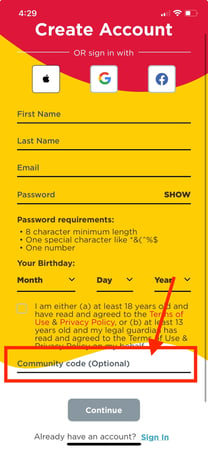
If you don’t have an archive.storycorps.org account, you can use a community code to instantly join a community when you create an account using the StoryCorps App. Simply enter your unique code in the Community code (Optional) field when entering your account details and follow the on screen prompts. You will instantly become a member of the community when you finish creating your account.
Using a community code when you already have an account
You can also use a community code to join a community in the StoryCorps App using an existing archive.storycorps.org account. To join a community after you’ve created an account in the StoryCorps App:
-
Open the StoryCorps App and login to your archive.storycorps.org account.
-
Select the profile icon on the bottom right side of the app navigation bar.
-
On your profile screen, select the blue edit icon that appears on the upper right corner of your profile picture.
-
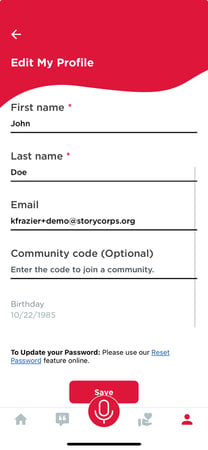
From the Edit My Profile screen, find the Community code (Optional) field and enter your community code.
-
Select Save at the bottom of the screen to add yourself to the community.